NEWS
NEWS
Google Launches 'Trusted Contacts' Location Sharing App on iOS
 07/27/2017
 2401
2401
Following an Android launch last December, Google recently announced that its location sharing app, "Trusted Contacts," is out now on the iOS App Store . The company described the app as a way for users to get together in everyday situations, as well as in emergency scenarios where they can let friends and family know that they're safe.
Now that the app is on both Android and iOS, cross-platform location sharing is available so you can keep track of any friends and family members no matter if they own an iPhone or Android smartphone, so long as they're also using Trusted Contacts. Similar to the Android app, the iOS app supports offline use, showing those who can see your location where you were last before you went offline.
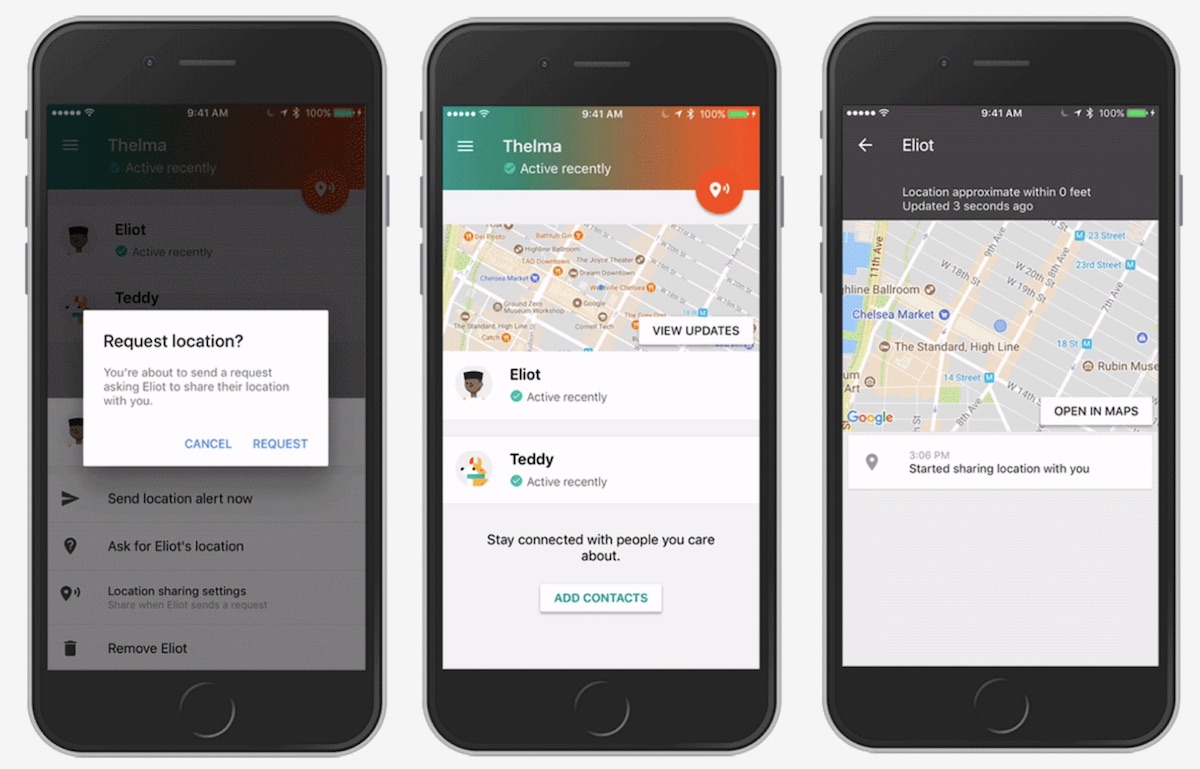
Google highlighted a few features on the Trusted Contacts App Store page, including integration with Google Maps and its "Share Location" feature that launched in March:
Add your closest friends and family as trusted contacts.
Allow trusted contacts to request your location. If everything’s fine, you can deny the request. If you’re unable to respond, your last known location is shared automatically within a custom timeframe (works even if you’re offline or your phone is out of battery).
Proactively share your location if you feel unsafe or find yourself in an emergency.
Integration with Google Maps location sharing, so you can easily enable permanent location sharing with selected contacts and find them directly within Google Maps.
Location sharing is a popular, and controversial, feature of many apps nowadays. Most recently, Snapchat launched the "Snap Map," which lets users share and update their location on an animated map any time Snapchat is open. Likewise, Facebook Messenger launched "Live Location" earlier this year, letting friends send their location to one another directly within text conversations.
Source: macrumors