NEWS

Google Play Music updated with support for iPhone X

12/15/2017

2585

Over a month after the device’s initial release, Google today has updated Play Music for iOS with support for iPhone X. With today’s update, the app now takes full advantage of the iPhone X’s 5.8-inch OLED display…
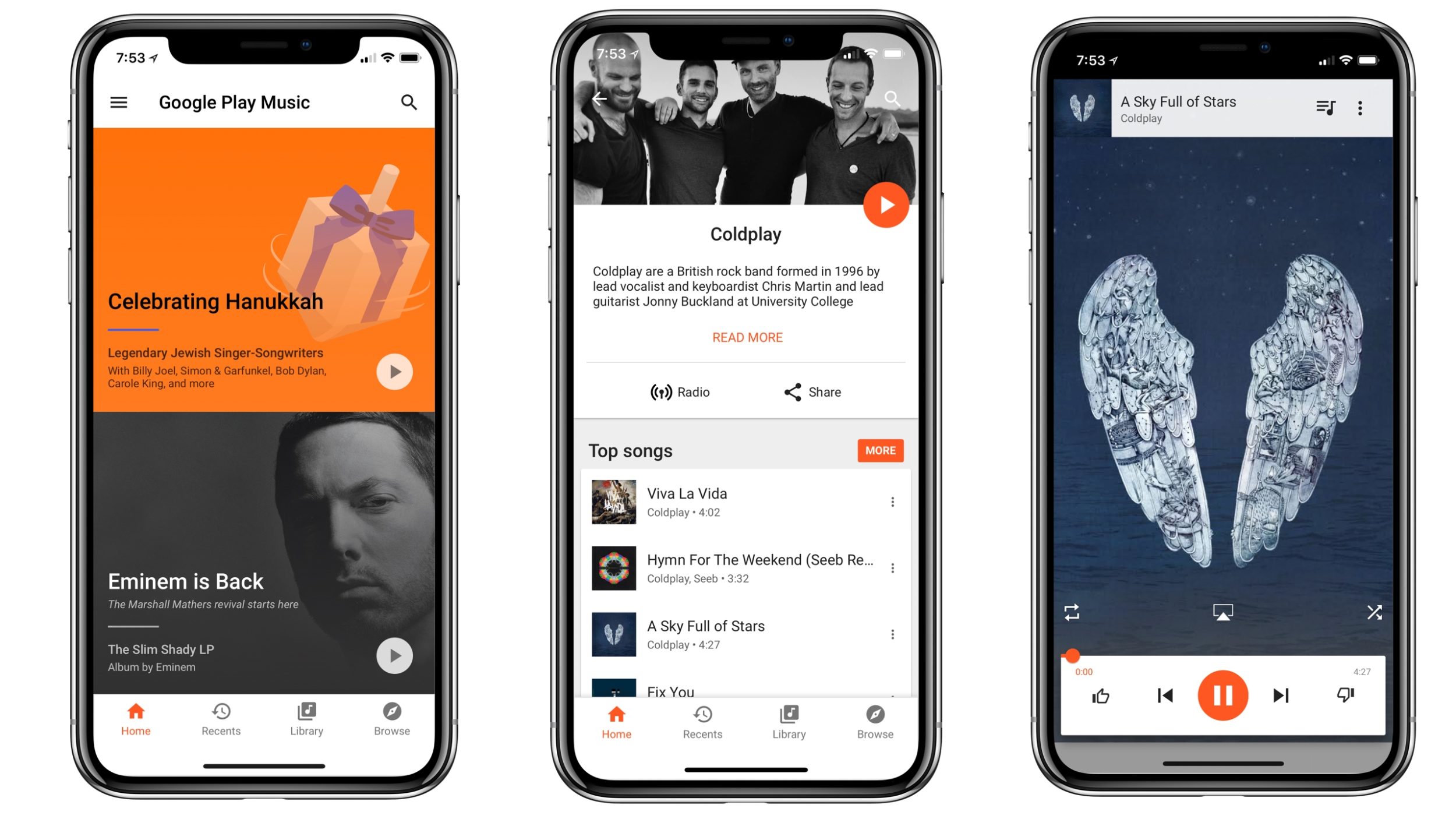

Google Play Music updated with support for iPhone X


While Google’s change log for today’s update only lists “bug fixes,” it’s clear the app now offers much better optimization for the iPhone X. As you can see in the above screenshots, the app fully embraces the notch design for an immersive experience.


Google has been somewhat slow to update apps for the iPhone X. Just two weeks ago, Google Maps was updated with support for Apple’s new flagship, while the Google Docs suite was updated just a few days before that. Gmail for iOS was optimized last week.


Google Play Music is available as a free download from the App Store.


Source: 9to5mac
Windows
Mac OS
iOS
Linux
3uTools
Win 64-bit For this device
V6.0.1 2024-12-18
Download
Win 32-bit For this device
V6.0.1 2024-12-18
Download
3uTools
Intel Chip How to Identify Chip Type
V6.0.1 2024-12-18
Download
Apple Silicon
V6.0.1 2024-12-18
Download
How to Identify Chip Type
1.  Click the Apple icon in the top-left corner of the screen and select About This Mac.
2.  Check the Processor or Chip field to determine if it is "Intel" or "Apple".
Please use the 3uTools PC client to install the iOS client:
1、 Install either the Windows or Mac version of 3uTools on your computer
2、 Open the PC client and connect your device to the computer via USB cable
3、 After the connection is successful, wait for the computer to automatically install the mobile app for the device, or locate “Install Mobile App” on the computer and manually click to install.
3uTools
deb file
V6.0.1 2024-12-18
Download
rpm file
V6.0.1 2024-12-18
Download
Windows
Windows
iOS
iOS
Android
Android
TV
TV
3uAirPlayer
Win 64-bit For this device
V6.0.1 2024-12-18
Download
Win 32-bit For this device
V6.0.1 2024-12-18
Download
iOS Device Mirroring (No App Required)
1、 Install 3uAirPlayer on the Windows PC
2、 Open Control Center and select Screen Mirroring
3、 From the list, choose your PC to start mirroring
4、 Or connect your iOS device to the PC via USB to begin mirroring
Scan to get "3uAirPlayer" App
3uAirPlayer TV V6.0.1
2024-12-18
TV System Requirements: Android 7.0 or later
Download the TV installation package, copy it to a USB drive, insert it into your TV or set-top box, then select the file from the home screen to install.