NEWS
NEWS
Snapchat Rolls Out First TrueDepth-Enhanced AR Lenses for iPhone X Users
 04/08/2018
 2141
2141
Snapchat today began implementing Apple's TrueDepth camera technology in its Lenses selfie feature for the first time. The silent update means iPhone X owners who use Snapchat will see augmented reality masks pop up in the app that make use of Apple's advanced facial mapping technology to superimpose the mask onto the user's face more realistically and track motion more accurately. 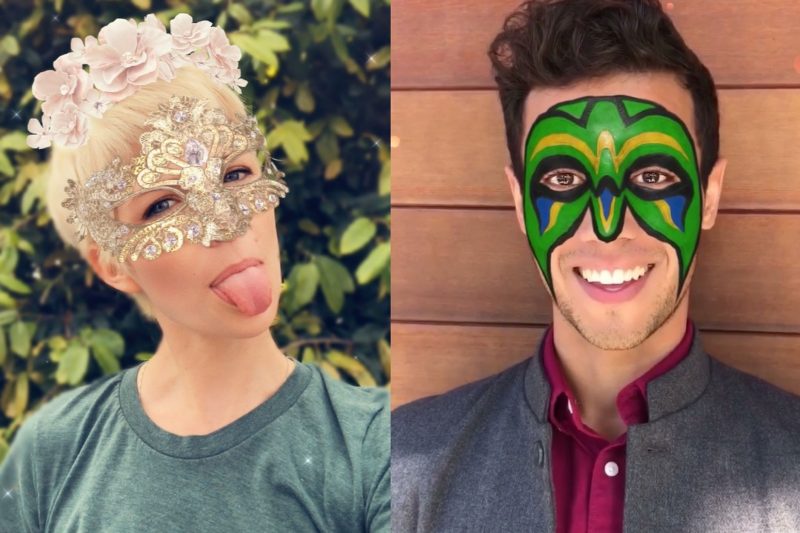
Apple first demoed the AR Snapchat Lenses at its iPhone X event last year, as part of its on-stage TrueDepth technology unveiling. Apple's Animojis work using the TrueDepth camera. Face ID also uses its structured-light technique to project a pattern of 30,000 laser dots onto a user's face and measure the distortion to generate an accurate 3D image for authentication.
Apple says the Face ID mathematical image data is encrypted upon generation and never leaves the smartphone's Secure Enclave. Third-party app developers are however able to access TrueDepth's visual face maps separately, including a live read-out of 52 micro-movements in the eyelids, mouth, and other features. At the same time, Apple explicitly forbids this data being exploited for user profiling or ad marketing purposes, but that hasn't stopped privacy advocates and some developers from raising concerns about third-party app access to the TrueDepth Camera.
At present there are three Lenses that utilize TrueDepth, demonstrating closer tracking of facial expressions and head movement. Snapchat says the TrueDepth camera also lets it blur the background and more accurately apply small details and 3D objects, which reflect and react to ambient lighting to project shadows and add highlights. The TrueDepth Lenses only appear for iPhone X owners and more of the AR masks are likely to appear periodically in the future.
Snapchat is a free download for iPhone and iPad from the App Store.
Source: macrumors