NEWS
NEWS
Apple Disallows Developers from Collecting and Sharing Contacts Data
 06/13/2018
 2150
2150
A largely unnoticed change in the revised App Store Guidelines Apple issued during WWDC was a ban on developers building their own databases with collected contact info, and/or sharing them without further permission.
Until the revised guidelines were released last week, iOS developers only needed to secure initial permission to harvest contact data, Bloomberg noted on Tuesday. iOS Contacts can contain not just phone numbers and email addresses but other saved information such as photos and birthdays.
"The address book is the Wild West of data," one anonymous developer explained prior to WWDC. "I am able to instantly transfer all the contacts info into some random server or upload it to Dropbox if I wanted to, the very moment a user says okay to giving contacts permission. Apple doesn't track it, nor do they know where it went."
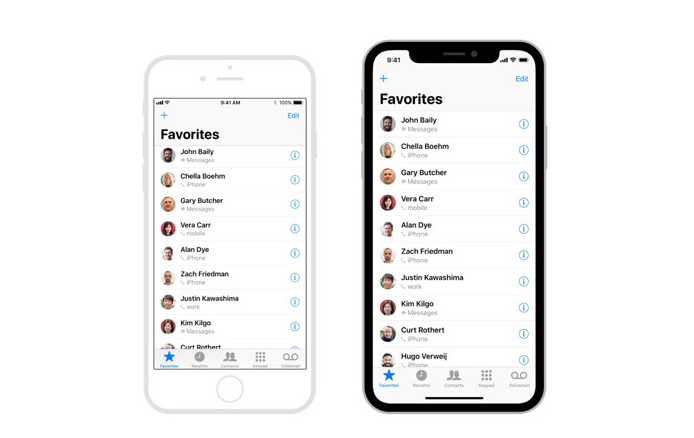
Under the new rules, developers are not only barred from creating, sharing, or selling databases based on harvested contact info, but must use contact data explicitly for what they say they will unless they get further permission.
Likewise, apps can't contact people "except at the explicit initiative of that user on an individualized basis," and must offer message previews.
Apple will likely have a difficult time enforcing the new policy, but should be able to wield it when it learns of privacy breaches through media reports and security researchers.
The company has dealt with a number of contact-related privacy issues in the past, most famously a 2012 controversy over Path. The app was found to be uploading contact lists without permission, an incident which ultimately led to some of Apple's tighter restrictions. The U.S. Federal Trade Commission sued Path, eventually settling out of court, but Apple CEO Tim Cook reportedly dressed down Path's CEO in person during the debacle.
Source: appleinsider