NEWS

Track Santa's Journey From the North Pole Using Google's Santa Tracker

12/26/2022

398

If you have been good this year, you may be interested to learn that Google today launched its annual Santa tracking feature, allowing Santa to be tracked in real time on his mythical journey to the North Pole as he prepares to deliver presents to kids around the world.
Track Santa's Journey From the North Pole Using Google's Santa Tracker


Google's Santa Tracker continues a 19-year tradition for the company, allowing excited children (and parents!) to keep up with the jolly gift-giver's travels throughout December 24. On this day, Santa's Village transforms into a tracking experience where children can follow Santa and his reindeer as they merrily go about their important work.


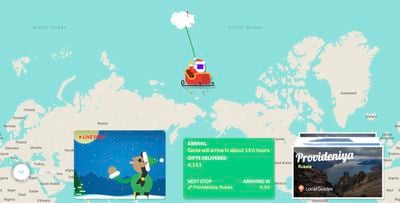
Santa can be tracked using a web browser on iPhone, iPad, or Mac by visiting Google's official Santa Tracking website. The site features a live map of Santa's current location, his next stop, a live video feed of his journey, and the estimated time that he will arrive in each specific location.


The Santa site provides pictures of locations that Santa has already visited, a live count of gifts that have been delivered, and Santa's current distance from your location. There are also a selection of games to play, creative things to do, and videos to watch.


Other Santa tracking services are also available, such as the NORAD Tracks Santa Claus app and website, but Google's site is often the most interactive and detailed.


Source: Macrumors
Windows
Mac OS
iOS
Linux
3uTools
Win 64-bit For this device
V6.0.1 2024-12-18
Download
Win 32-bit For this device
V6.0.1 2024-12-18
Download
3uTools
Intel Chip How to Identify Chip Type
V6.0.1 2024-12-18
Download
Apple Silicon
V6.0.1 2024-12-18
Download
How to Identify Chip Type
1.  Click the Apple icon in the top-left corner of the screen and select About This Mac.
2.  Check the Processor or Chip field to determine if it is "Intel" or "Apple".
Please use the 3uTools PC client to install the iOS client:
1、 Install either the Windows or Mac version of 3uTools on your computer
2、 Open the PC client and connect your device to the computer via USB cable
3、 After the connection is successful, wait for the computer to automatically install the mobile app for the device, or locate “Install Mobile App” on the computer and manually click to install.
3uTools
deb file
V6.0.1 2024-12-18
Download
rpm file
V6.0.1 2024-12-18
Download
Windows
Windows
iOS
iOS
Android
Android
TV
TV
3uAirPlayer
Win 64-bit For this device
V6.0.1 2024-12-18
Download
Win 32-bit For this device
V6.0.1 2024-12-18
Download
iOS Device Mirroring (No App Required)
1、 Install 3uAirPlayer on the Windows PC
2、 Open Control Center and select Screen Mirroring
3、 From the list, choose your PC to start mirroring
4、 Or connect your iOS device to the PC via USB to begin mirroring
Scan to get "3uAirPlayer" App
3uAirPlayer TV V6.0.1
2024-12-18
TV System Requirements: Android 7.0 or later
Download the TV installation package, copy it to a USB drive, insert it into your TV or set-top box, then select the file from the home screen to install.