NEWS

Apple Vision Pro Headset Supports Prescription Inserts for Glasses Wearers

06/06/2023

208

Apple today announced the Apple Vision Pro, a wearable augmented and virtual reality headset. Because of the way the headset fits against the face, it does not accommodate glasses, but Apple has a solution for those who need prescription lenses.
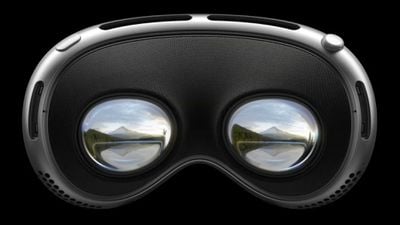
Apple Vision Pro Headset Supports Prescription Inserts for Glasses Wearers


Apple is partnering with Zeiss to offer Zeiss Optical Inserts that can be customized to each person's vision prescription. The inserts will attach to the Vision Pro lenses magnetically, allowing for precise viewing and eye tracking.


There is no word yet on what the Zeiss prescription inserts will cost, but Apple says that vision correction accessories will be sold separately.


Glasses wearers will need a valid prescription to get the inserts, and not all prescriptions will be supported, so there will be some limitations that might prevent some people from using the headset.


The Vision Pro headset will be available in early 2024 and it will be priced starting at $3,499.


Source: Macrumors
Windows
Mac OS
iOS
Linux
3uTools
Win 64-bit For this device
V6.0.1 2024-12-18
Download
Win 32-bit For this device
V6.0.1 2024-12-18
Download
3uTools
Intel Chip How to Identify Chip Type
V6.0.1 2024-12-18
Download
Apple Silicon
V6.0.1 2024-12-18
Download
How to Identify Chip Type
1.  Click the Apple icon in the top-left corner of the screen and select About This Mac.
2.  Check the Processor or Chip field to determine if it is "Intel" or "Apple".
Please use the 3uTools PC client to install the iOS client:
1、 Install either the Windows or Mac version of 3uTools on your computer
2、 Open the PC client and connect your device to the computer via USB cable
3、 After the connection is successful, wait for the computer to automatically install the mobile app for the device, or locate “Install Mobile App” on the computer and manually click to install.
3uTools
deb file
V6.0.1 2024-12-18
Download
rpm file
V6.0.1 2024-12-18
Download
Windows
Windows
iOS
iOS
Android
Android
TV
TV
3uAirPlayer
Win 64-bit For this device
V6.0.1 2024-12-18
Download
Win 32-bit For this device
V6.0.1 2024-12-18
Download
iOS Device Mirroring (No App Required)
1、 Install 3uAirPlayer on the Windows PC
2、 Open Control Center and select Screen Mirroring
3、 From the list, choose your PC to start mirroring
4、 Or connect your iOS device to the PC via USB to begin mirroring
Scan to get "3uAirPlayer" App
3uAirPlayer TV V6.0.1
2024-12-18
TV System Requirements: Android 7.0 or later
Download the TV installation package, copy it to a USB drive, insert it into your TV or set-top box, then select the file from the home screen to install.