NEWS
NEWS
Father of Cydia Recommended Not to Install YUCCA Utilities on iDevice
 01/09/2017
 2231
2231
While Yalu jailbreak is still under development, it does not feature support for all iOS devices. If you’re one of those who are eagerly waiting for the tool to be fixed for unsupported iOS device, then today’s news might interest you. These unsupported iOS devices include the iPhone 6s, 6s Plus as well as the iPhone SE that features an integrated TSMC chip. With that said, a developer by the name of @sticktron on Twitter has posted a fix for the jailbreak tool. Lets see some more details on the matter.
Developer Posts Yalu Jailbreak TSMC Fix For iPhone 6s, 6s Plus And iPhone SE
Luca Todesco has confirmed that the fix for the Yalu jailbreak tool is established and works fine for the TSMC iPhone 6s, 6s Plus and the iPhone SE. Todesco stated:“since people seem to not know yet: a fix for TSMC has been posted for both SE and 6s. So support should now be complete for those devices.” He adds “I suggest using @sticktron’s 6s TSMC fix, no one else’s.”
This is definitely a welcome news for users who wanted to jailbreak their devices using the Yalu jailbreak tool but handled the iPhone 6s, 6s Plus or iPhone SE with integrated TSMC chip. However, we do not recommend you to jailbreak just yet since the Yalu jailbreak is still a work-in-progress. It is advised that users should wait for a more stable build as to avoid any issues. Even the hacker has clearly stated that the Yalu jailbreak is only oriented towards developers and contains serious bugs in all beta versions of the jailbreak. Henceforth, stay put and wait for the final build.
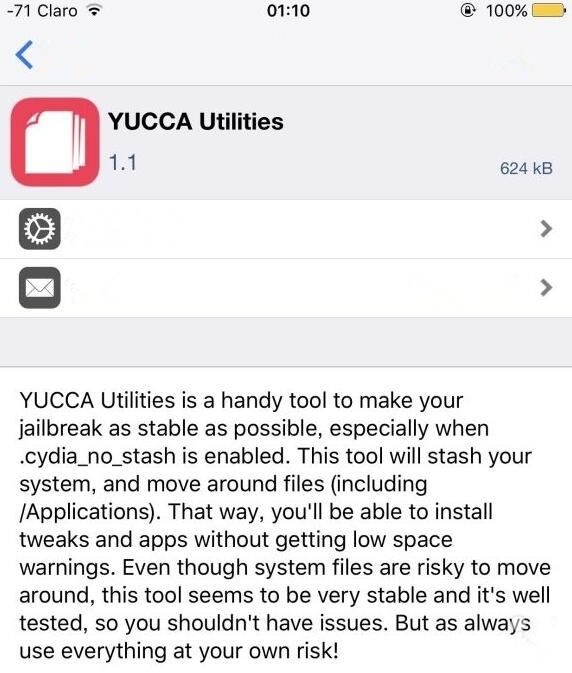
In addition to this, Luca Todesco has mentioned on several occasions that jailbreak users should also avoid installing any kind of Substrate enablers like YUCCA Utilities. According to Todesco, users are doing it all wrong. Moreover, he also emphasizes on removing OpenSSH or forego installing it to begin with. This is because at the time being it does not work properly on iOS 10. Moreover, there’s no point in installing it because the Yalu jailbreak comes with its own SSH. So be sure to follow these guidelines if the jailbreak is causing any issues.
Nonetheless, if you think you have the required expertise in the field and want to make use of the new fix for devices with TSMC chips, then be sure to avoid any potential risks that might harm your iOS device.
This is it for now, folks. What are your thoughts on the jailbreak fix for TSMC supported iPhone 6s, iPhone 6s Plus and the iPhone SE?
Source: wcctech