TUTORIALS
How to Restore Jailbroken iPad To Factory Settings?
 03/16/2017
 7137
7137
Are you looking for ways to restore jailbroken iPad to factory settings? A reset will restore the iPad as it was before the jailbroken, and you can use the iPad like a non-jailbroken iPad. For most iPad users, they may find the system become unstable after jailbreaking, this is the main reason that they want to restore jailbroken iPad to factory settings.
Note:
Before restore jailbroken iPad to factory settings, you’re suggested to backup iPad data files using 3uTools, it will make you safe from losing your important data in iPad.
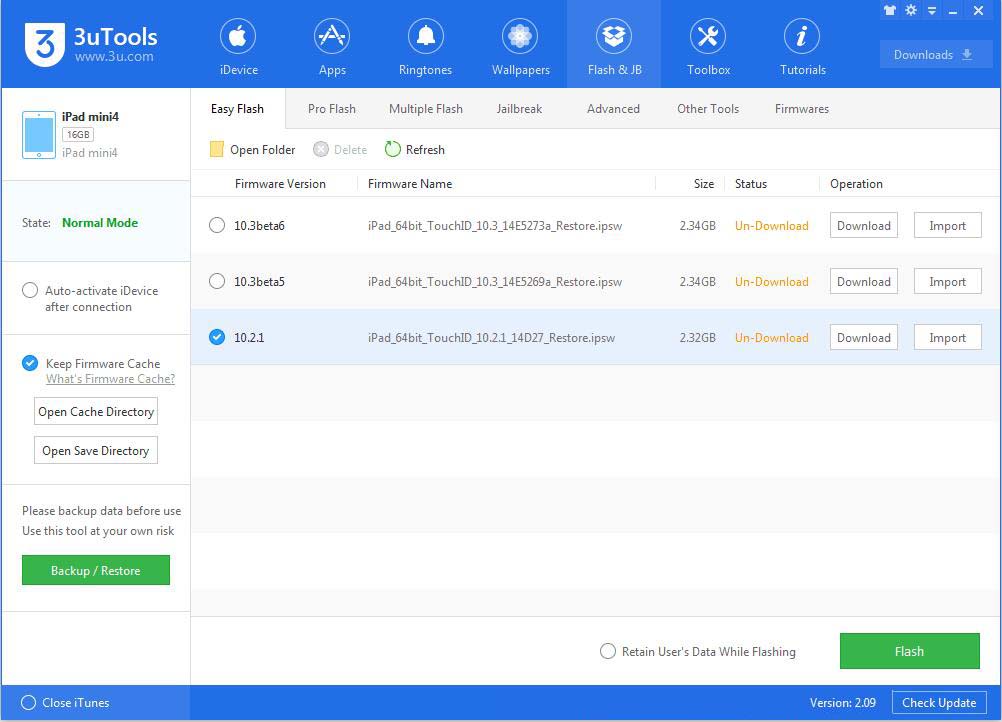
Step1: Connect your jailbroken iPad to 3uTools on PC. Click Flash & JB -> Easy Flash -> 3uTools will match the available firmware for your iPad automatically.
Step2: Select the firmware for your iPad -> Click Flash -> wait until this process is completed -> activate your iPad.
Problems & Solutions
Error code 160X
# Make sure that you’ve downloaded the correct firmware for your iPad.
# Check the system of your PC.
# Check the USB port, you’re suggested to use the USB port behind the PC.
# Try again on another PC.
# If you restore the jailbroken iPad using iTunes and meet with the error code 160X, please set iPad in DFU mode first -> click Ok -> keep iPad connected ->relaunch iTunes -> iTunes will recognize iPad again -> try to restore iPad using iTunes again.
# Turn off the firewall of you PC temporarily.
Jailbreaking may damage your iDevice, you’d better know clearly about jailbreaking advantages and disadvantages before you decided to jailbreak. Your jailbroken didn't make any changes when it was done. And the normal reset just let your iPad be restored to its previous way. It will give you a fully working iPad as before jailbroken but with a non-jailbroken state.