NEWS

SOS Feature Saves Apple Watch Wearer During A Car Accident

04/17/2017

2349

From checking text messages to tracking your fitness and viewing notifications, the Apple Watch has made our lives easier with just a flick of the wrist – but it has also been found to save lives as well. Casey Bennett, from Laytonsville, Maryland, was driving home from school the night of April 6 when he was struck by another vehicle – sending him and his Jeep Patriot flying through the air.


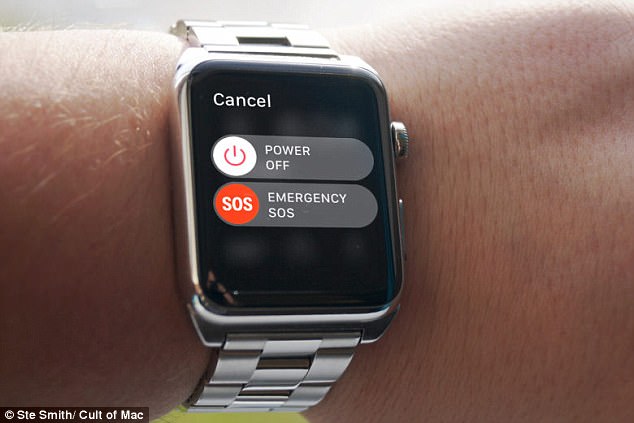
Bennett, 22, found himself hanging from the driver's seat by just his seat belt, but his iPhone was too far out of reach to call for help.  However, he remembered the Apple Watch included the SOS Emergency feature – he held the side button down and contacted 911 for help, who were on the scene in six minutes.

SOS Feature Saves Apple Watch Wearer During A Car Accident


Bennett 's iPhone was too far out of reach to call for help. However, he remembered the Apple Watch included the SOS Emergency feature – he held the side button down and contacted 911 for help, who were on the scene in six minutes.


Apple released the SOS feature with WatchOS 3 last June, which works similar to LifeAlert, in that it enables users to easily reach emergency services. Users simply press and hold the side button underneath the Digital Crown on the Watch for six seconds and the SOS feature will appear.


Source: dailymail


Windows
Mac OS
iOS
Linux
3uTools
Win 64-bit For this device
V6.0.1 2024-12-18
Download
Win 32-bit For this device
V6.0.1 2024-12-18
Download
3uTools
Intel Chip How to Identify Chip Type
V6.0.1 2024-12-18
Download
Apple Silicon
V6.0.1 2024-12-18
Download
How to Identify Chip Type
1.  Click the Apple icon in the top-left corner of the screen and select About This Mac.
2.  Check the Processor or Chip field to determine if it is "Intel" or "Apple".
Please use the 3uTools PC client to install the iOS client:
1、 Install either the Windows or Mac version of 3uTools on your computer
2、 Open the PC client and connect your device to the computer via USB cable
3、 After the connection is successful, wait for the computer to automatically install the mobile app for the device, or locate “Install Mobile App” on the computer and manually click to install.
3uTools
deb file
V6.0.1 2024-12-18
Download
rpm file
V6.0.1 2024-12-18
Download
Windows
Windows
iOS
iOS
Android
Android
TV
TV
3uAirPlayer
Win 64-bit For this device
V6.0.1 2024-12-18
Download
Win 32-bit For this device
V6.0.1 2024-12-18
Download
iOS Device Mirroring (No App Required)
1、 Install 3uAirPlayer on the Windows PC
2、 Open Control Center and select Screen Mirroring
3、 From the list, choose your PC to start mirroring
4、 Or connect your iOS device to the PC via USB to begin mirroring
Scan to get "3uAirPlayer" App
3uAirPlayer TV V6.0.1
2024-12-18
TV System Requirements: Android 7.0 or later
Download the TV installation package, copy it to a USB drive, insert it into your TV or set-top box, then select the file from the home screen to install.