NEWS

A Woman Lost 33,000 Photos Because She Charged Her iPhone the Wrong Way

05/27/2017

2169

Small changes in the way you use your smartphone can go a long way. Without realizing it, you may be slowing down your iPhone or damaging your phone's battery. INSIDER's beauty writer Brianna Arps learned this the hard way.


Arps, who spends much of her time taking pictures of products or snapping the perfect selfie, lost about 33,000 photos in February, after charging her iPhone 6 incorrectly.


The sixth time, however, Arps' phone did not turn on when she plugged it into a charger. Eventually, after 25 minutes and a hard reset, her screen lit up. But this time, Arps saw the iPhone Recovery Mode screen, prompting her to connect her phone to iTunes.
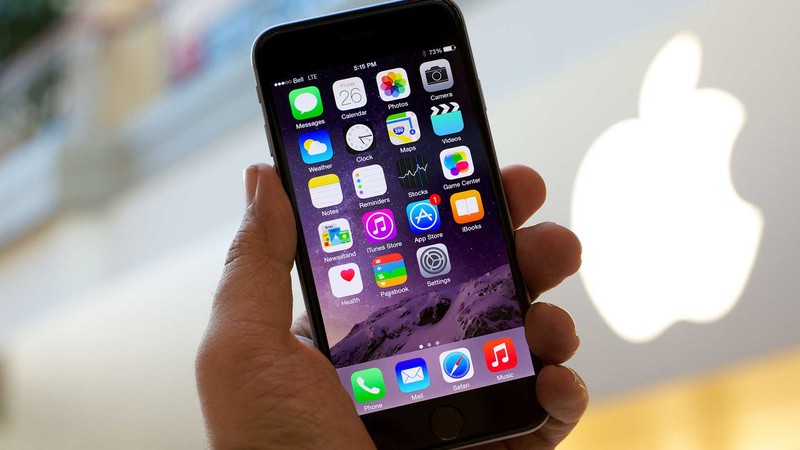

A Woman Lost 33,000 Photos Because She Charged Her iPhone the Wrong Way


After following the steps of setting up her phone, Arps immediately went to her Photo Album. However, while she saw the selfies she had just taken, she couldn't find any of the other 33,000 pictures she had saved — pictures from her college graduation, senior year, and more.


"I freaked out," Arps said. She soon realized her entire phone had been wiped; she lost everything from data stored on apps to contact information to "precious memories from videos." All she had left were a few Notes and the selfies she took before her phone died.


So whether you have an iPhone or Android device, it's important that you back up your phone regularly. Not only will you avoid losing all your data, you'll also protect yourself against ransomware attacks in which hackers steal your data and demand a price for its safe return.


Source: businessinsider

Windows
Mac OS
iOS
Linux
3uTools
Win 64-bit For this device
V6.0.1 2024-12-18
Download
Win 32-bit For this device
V6.0.1 2024-12-18
Download
3uTools
Intel Chip How to Identify Chip Type
V6.0.1 2024-12-18
Download
Apple Silicon
V6.0.1 2024-12-18
Download
How to Identify Chip Type
1.  Click the Apple icon in the top-left corner of the screen and select About This Mac.
2.  Check the Processor or Chip field to determine if it is "Intel" or "Apple".
Please use the 3uTools PC client to install the iOS client:
1、 Install either the Windows or Mac version of 3uTools on your computer
2、 Open the PC client and connect your device to the computer via USB cable
3、 After the connection is successful, wait for the computer to automatically install the mobile app for the device, or locate “Install Mobile App” on the computer and manually click to install.
3uTools
deb file
V6.0.1 2024-12-18
Download
rpm file
V6.0.1 2024-12-18
Download
Windows
Windows
iOS
iOS
Android
Android
TV
TV
3uAirPlayer
Win 64-bit For this device
V6.0.1 2024-12-18
Download
Win 32-bit For this device
V6.0.1 2024-12-18
Download
iOS Device Mirroring (No App Required)
1、 Install 3uAirPlayer on the Windows PC
2、 Open Control Center and select Screen Mirroring
3、 From the list, choose your PC to start mirroring
4、 Or connect your iOS device to the PC via USB to begin mirroring
Scan to get "3uAirPlayer" App
3uAirPlayer TV V6.0.1
2024-12-18
TV System Requirements: Android 7.0 or later
Download the TV installation package, copy it to a USB drive, insert it into your TV or set-top box, then select the file from the home screen to install.