NEWS
NEWS
Toronto Police Ask iPhone Users Not to Test iOS 11 Security Feature
 09/22/2017
 2803
2803
A new security feature in iOS 11 allows iPhone users to temporarily disable Touch ID logins and quickly call 9-1-1 — but it has had unintended consequences in Toronto, where the police have asked residents to stop testing it out.
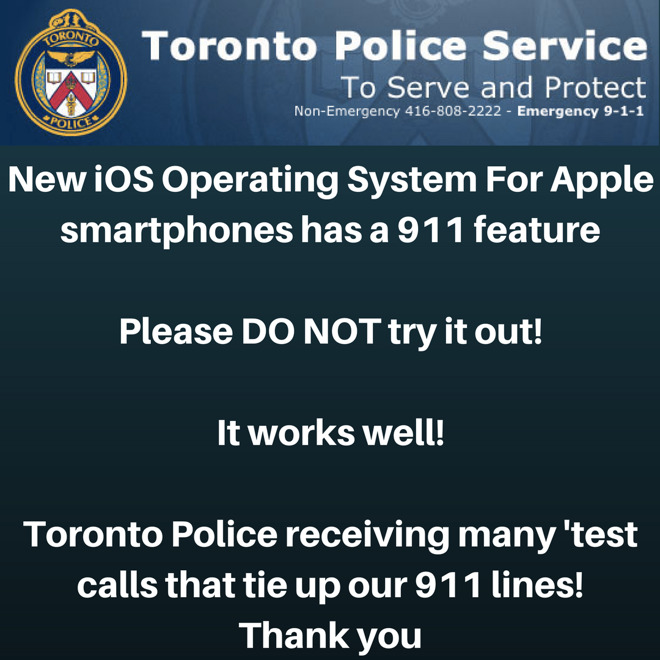
In a post to Twitter this week, the Toronto Police Service asked that residents please do not try out the new 9-1-1 feature found in iOS 11. Authorities said they are receiving many test calls that tie up the emergency services lines, leading to a potentially dangerous situation for callers with an actual emergency.
"It works well!" the Toronto police said, assuring users that the feature does, in fact, work.
After installing iOS 11, iPhone users who find themselves in a dangerous situation can press the lock button five times to bring up an emergency screen with three options: slide to power off, Medical ID, and Emergency SOS.
Sliding the Emergency SOS button will quickly call 9-1-1 for a user who is in a dangerous situation.
But there is an optional choice, disabled by default, available in the iOS 11 Settings application, where users can enable an "Auto Call" when the lock button is pressed five times in quick succession.
Needless to say, the feature should not be tested by anyone, and only utilized in the event of a legitimate emergency. Calling 9-1-1 without an actual emergency is considered a crime in some regions.
Pressing the lock button five times also disables Touch ID logins, requiring a user to enter their password in order to access the phone once again. And when the iPhone X arrives in early November, users will be able to disable Face ID by gripping buttons on both sides of the phone, including lock and volume.
Source: appleinsider