NEWS
NEWS
Apple Pay Accept Donations for Non-Profits and Charitable Organizations
 11/17/2016
 3118
3118
Apple is expanding its mobile payments service to accept donations for non-profits and charitable organizations, which were previously not allowed to use the service as a method for accepting donations.
The tech giant has had to enable certain safeguards to validate the legitimacy of the charities receiving donations before opening up Apple Pay to non-profits. With the new integration, charities can place a donate button within their apps, which can then be linked to users’ Apple Pay accounts.
Some of the organizations who have already added or are planning to add Apple Pay as a payments option include UNICEF, charity: water, The American Red Cross, St. Jude Children’s Research Hospital, and the World Wildlife Fund.
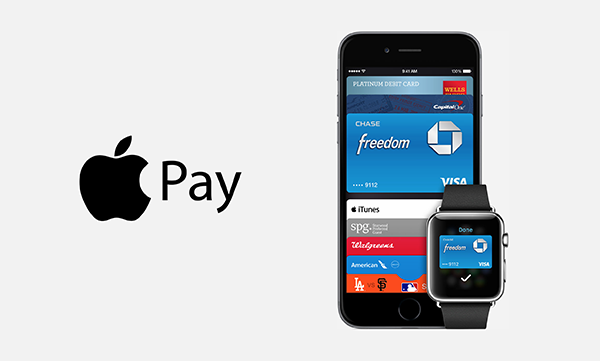
Apple is likely launching this feature in time for the holidays, when many people opt to donate to their favorite charities in the spirit of giving. Apple’s expansion to charities will also compete with digital wallet giant PayPal, which has been a popular payments choice for many non-profits.
Apple Pay launched in 2014 as a way to let shoppers load credit card and debit card information into a mobile wallet unique to the iPhone, and later Apple Watch. Consumers use their devices to pay at retail stores equipped with point-of-sale registers supporting near-field communication (NFC) technology, which enables frictionless payments between smartphones and registers without swiping a card. Consumers can also use Apple Pay accounts to pay for items within apps as well as via desktop and mobile web.
Apple has been notoriously quiet around revealing stats about Apple Pay usage, but the company recently said that tens of millions of customers are now using Apple Pay, and transactions were up nearly 500% for the most recent quarter from the previous year. Apple also said it completed more transactions using Apple Pay in the month of September than the company did across all of fiscal 2015.
Source: fortune