NEWS
NEWS
This 3-second Video Will Glitch Out Any iPad or iPhone
 11/23/2016
 2630
2630
Better watch out what videos you play on your flashy new iOS device over the next few days – there’s a malicious video circulating the Web and all it takes to glitch out your iPhone or iPad is three seconds.
EverythingApplePro has documented the buggy three-second clip in more detail in his latest video. As the tech YouTuber explains, playing the glitchy .mp4 video in Safari on any iOS device will cause the system to significantly slow down and eventually freeze altogether.
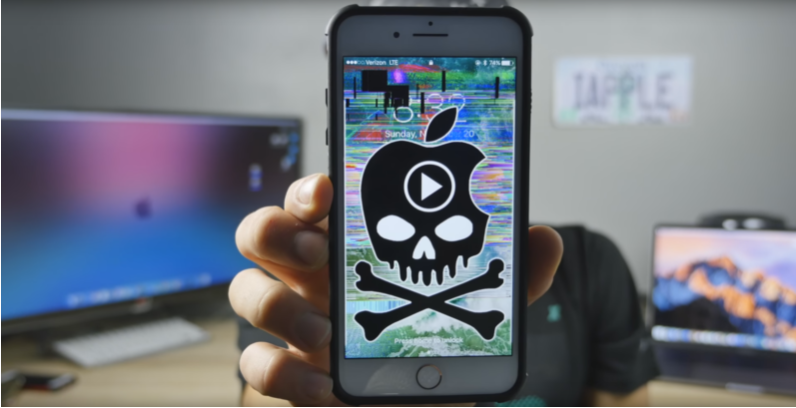
What’s particularly interesting is that the footage doesn’t immediately bug out your iPhone. Instead, it takes between 15 and 30 seconds to start affecting your device, gradually rendering it unusable.
It’s not exactly clear how the video causes the malfunction, but the most plausible explanation is that the clip is merely a corrupted file which chains a memory leak when loaded in Safari. In turn, iOS fails to properly handle it, which leads your iPhone and iPad devices to crash.
It appears the flaw isn’t specific to a certain iOS build as it affects recent and old versions of the platform, all the way back to iOS 5.
Android users have reported being able to watch the footage without any difficulties or subsequent issues. Curiously, one macOS Sierra user claims watching the clip caused Safari to crash on his MacBook Pro.
Fortunately, there’s a pretty easy fix in case you fall victim to the malicious video. All you have to do is force a reboot on your device. For older iPhone models you do so by long-pressing the Home and power buttons at the same time; iPhone 7 owners will have to simultaneously long-press the power and volume down buttons instead.
This isn’t the first time a glitch is causing Apple devices to freeze. A similar bug found in iOS popped up on the internet for a short while earlier this year, but the Big A was quick to resolve the issue.
Apple will also likely stamp out this particular flaw soon, but it might take some time before its engineers isolate the issue and roll out a patch. Until then, be careful what links you open.
The Cupertino giant has had a bumpy month. Over the last few weeks, Apple has acknowledged the long-speculated ‘Touch Disease‘ and also issued a statement it will be replacing faulty iPhone 6 batteries.
Source: 9to5mac